
How to annotate a PDF for review in Chrome
Mark the passage, explain the change you want, and check the saved PDF. Use Chrome's viewer or PDF Annotation for your review.
Updated 2026-10-09
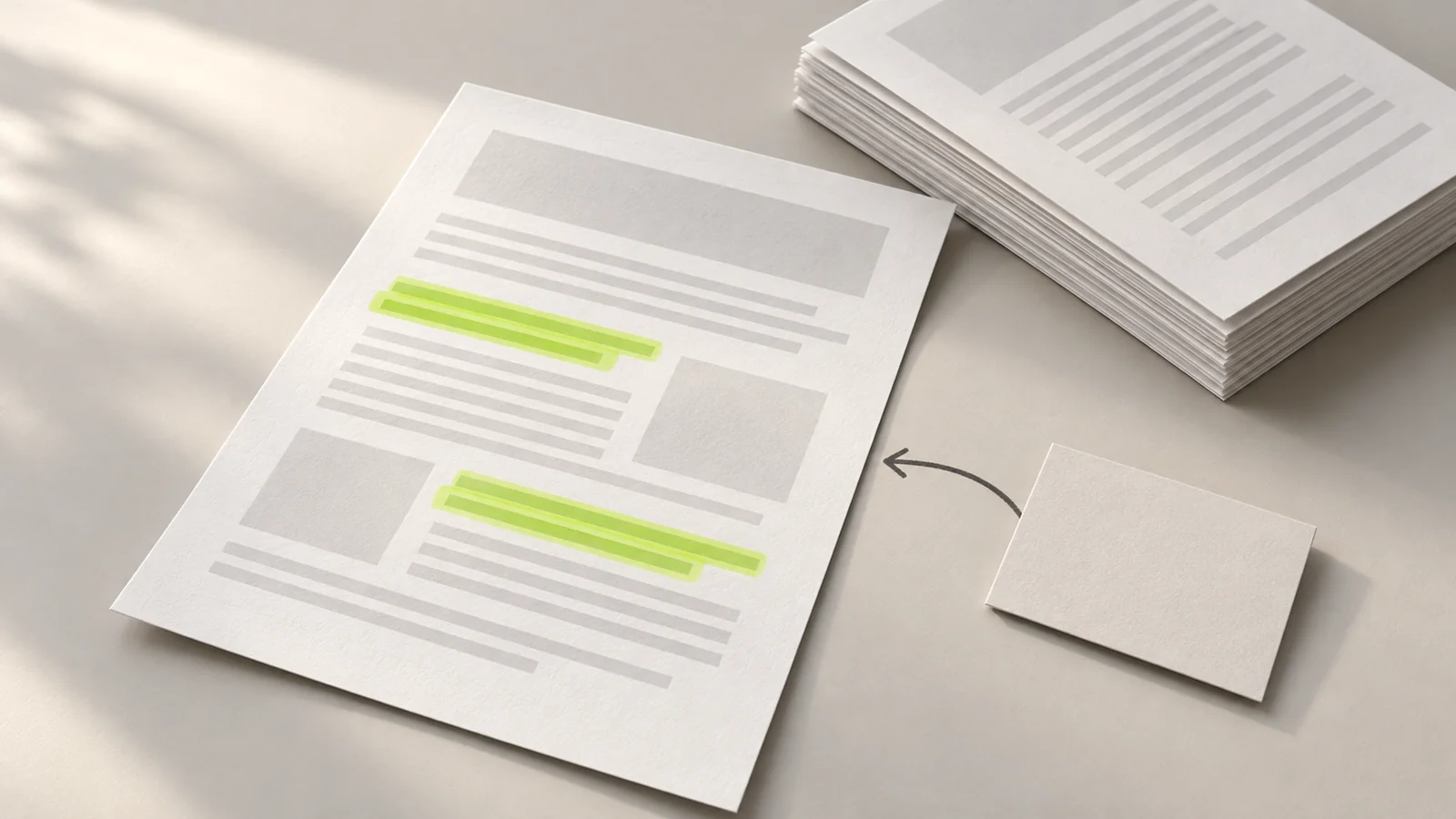
To annotate a PDF for review in Chrome, open the document, mark the passage that needs attention, and add a short note explaining what should change. Save a copy with your changes and reopen it before sharing. Chrome has built-in annotation tools; PDF Annotation is another option for movable markup objects and export of one selected page.
Keep an untouched original. A marked copy gives the author feedback without requiring you to rewrite their document.
Give each mark a clear purpose
A highlight locates a passage. A note explains the question or requested change. Use an arrow when the issue concerns a chart or another part of the page that is hard to identify in words.
For example, a review of a report might include a highlighted caption and a nearby note: "The caption says April, but the chart shows May. Please check the month." It tells the author where to look and what to resolve.
Write the request beside the relevant passage when there is space. If the margin is narrow, place the note in an open area and connect it with an arrow. Avoid covering the words the author needs to read.
Use Chrome's PDF viewer for a simple review
Google's desktop instructions describe these built-in controls:
- Open the PDF in Chrome, in its own tab if needed.
- Select Draw, then choose the pen or highlighter and its size and color. Drag over the area you want to mark.
- Select Add text, choose the text settings, and click where your note belongs.
- Select Download > With your changes to keep the markup. On a Chromebook, Google says to select Save.
Check which controls your viewer shows before starting. If it has the tools you need, you can review the file there.
Use PDF Annotation when you need object controls
The PDF Annotation tools include text notes, drawing and export of the whole document or one selected page. Its Chrome Web Store listing also documents selecting objects to move, resize, recolor or remove them, plus page reordering and rotation.
Open the installed extension and choose your local PDF. Add a text box for the remark, a highlight over the relevant area, or an arrow to point to a detail. Select a misplaced object and adjust it before moving on. These are the extension's documented tools; Chrome's Add text label above refers to its own viewer.
When the notes are ready, export the whole PDF or the selected page, then reopen the downloaded copy. The listing says PDF processing stays on your device.
Keep the review readable
Read the page at a normal viewing size after adding notes. Zooming in helps you place an object, but a remark that looks comfortable at high zoom may be too small for the recipient.
Use color consistently. If yellow means "check this," keep that meaning throughout the document and explain it in the handoff message. Include the requested action in the note so color is not the only way to interpret the feedback.
Keep page order unless rearranging it is part of the review. For export of one selected page, keep references self-contained. Replace "the previous table" with a precise reference, or export the whole PDF when the recipient needs surrounding pages.
Reopen the copy you will send
Give the output a filename you can distinguish from the source, such as report-review.pdf. Open that exact file in the viewer your recipient is likely to use and check:
- The expected pages are present and in the intended order.
- Notes and highlights are visible and do not cover necessary text.
- Each remark identifies the passage or figure it concerns.
- A single-page export has enough context to make sense on its own.
Check the exported file itself, rather than relying on the editing view. Do not assume the export preserves an editable working session for a later round of changes.
Know what markup changes
PDF Annotation adds markup over the page; it does not rewrite the original PDF text. If you want a sentence replaced, write the proposed change in a note for the author to apply in the source document. The listing also warns that whiteout is a visual cover, not redaction: underlying content can remain recoverable.
Before sending, check that you attached the review copy and kept the original separately. Your recipient should be able to understand the feedback from the saved file.